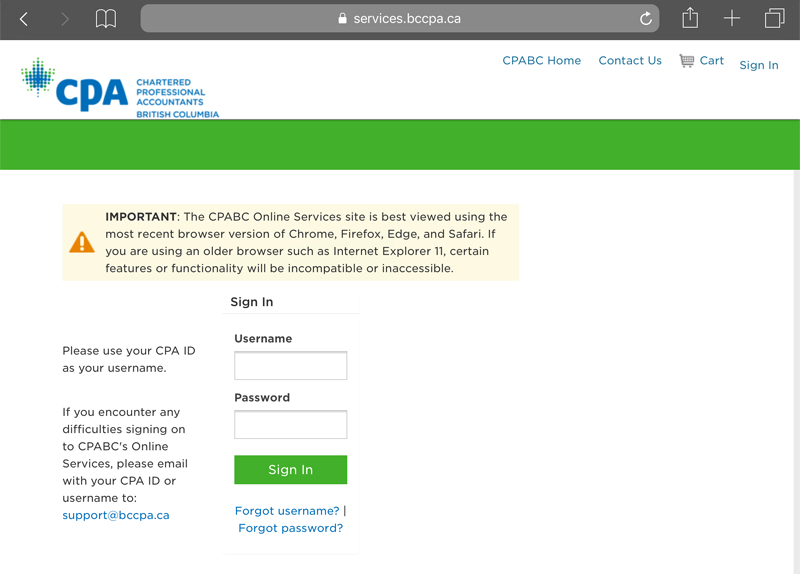
Online Services
Log into Online Services (services.bccpa.ca).
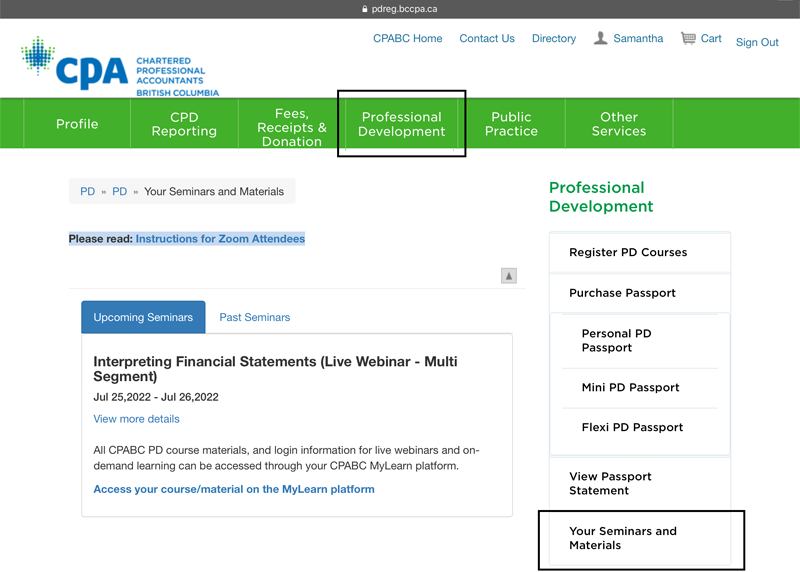
Tap on the Professional Development tab. On the right hand side menu, tap on Your Seminars and Materials.
Under Upcoming Seminars, you’ll find seminars you’re currently registered in. To access our learning management system, tap Access your course/material on the MyLearn platform.
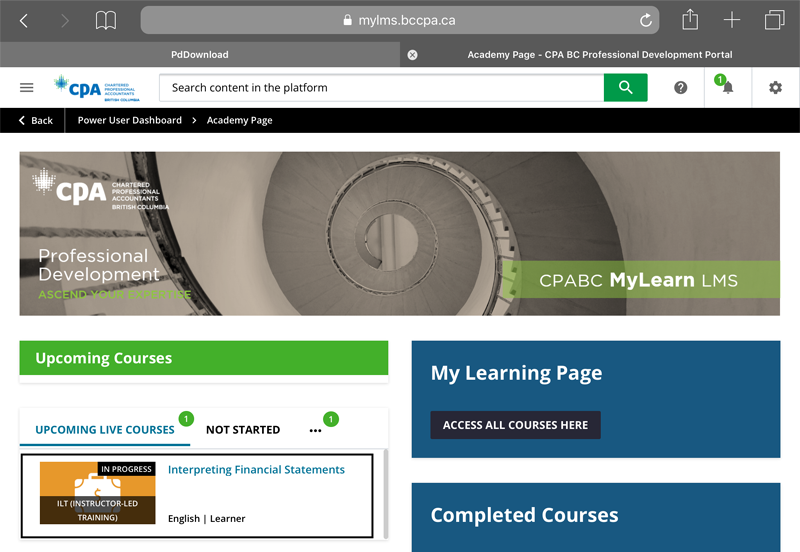
MyLearn Platform
The MyLearn platform will open in a new tab. Under Upcoming Courses, tap on your desired upcoming course.
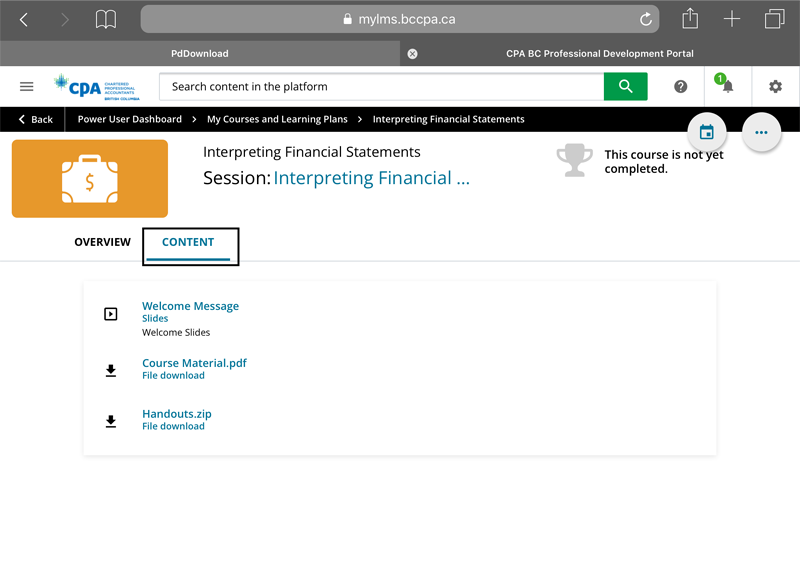
To access the course material, tap on the Content Tab. You’ll find the PDF version of the course material as well as any other additional .zip files available for download.
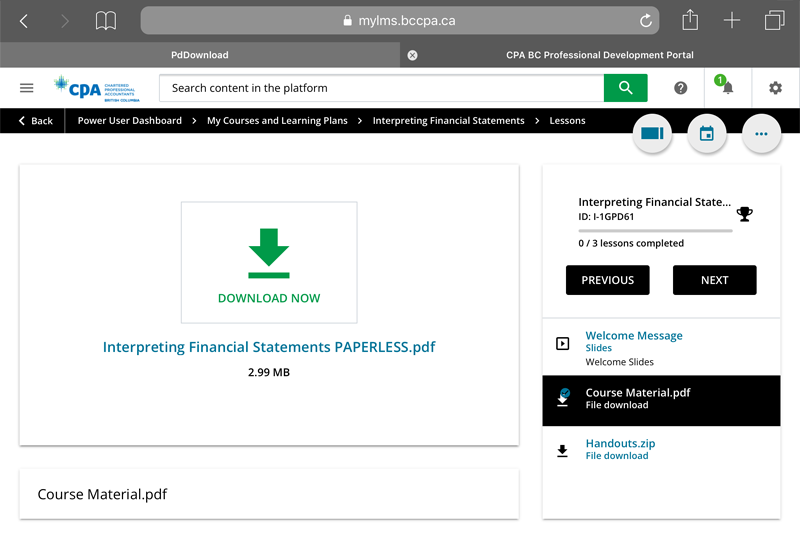
 The course material will open in a new tab once you tap on Download Now.
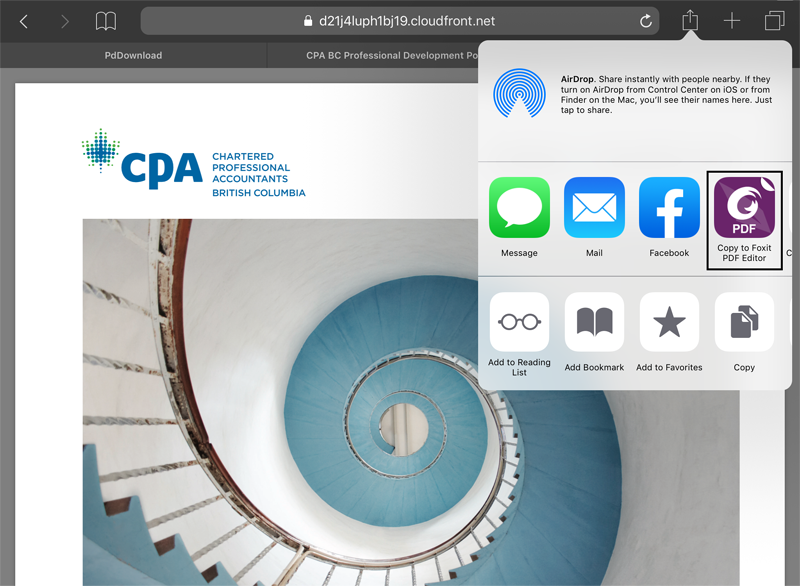
In order to annotate the pdf, you will have to export the file to an external application. There are many external applications you can use to open the PDF file. We recommend using the free application called Foxit PDF Editor in the App Store.
Tap Copy to Foxit PDF Editor. You’ll be redirected to the app after the file has been successfully exported.
Foxit PDF Editor
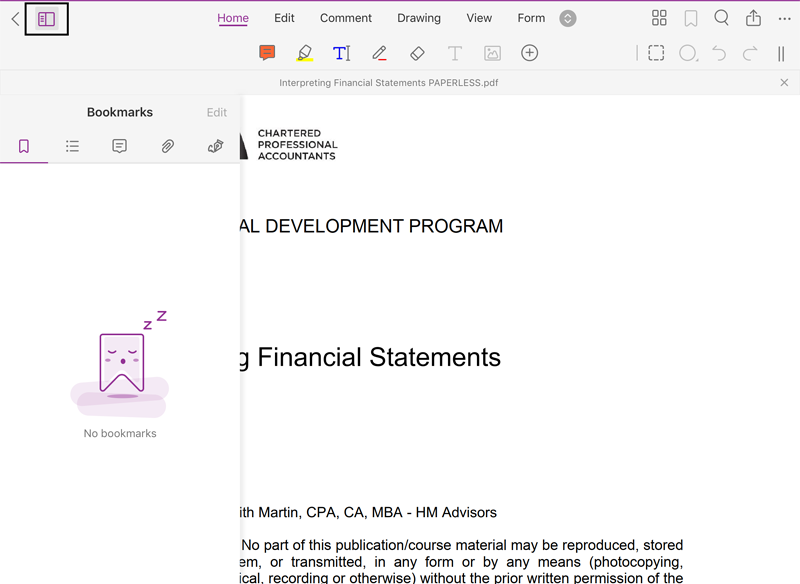
Bookmarks
If applicable, tap on the following icon in the top left hand corner to open the bookmarks.
Home Option
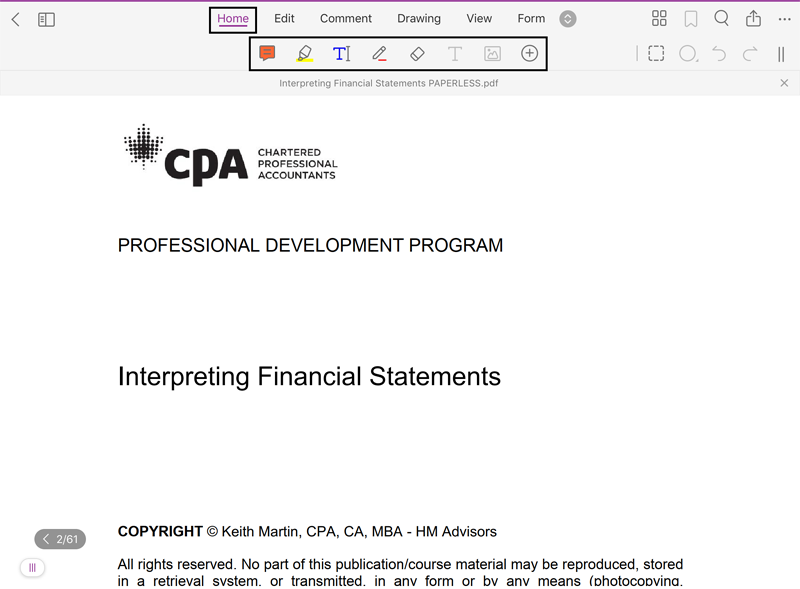
Basic annotation features will appear here. More options can be found in the Comment and Drawing tab.
(Left to right) Sticky note feature, highlighter feature, text feature, pencil feature, and eraser feature.
View Option
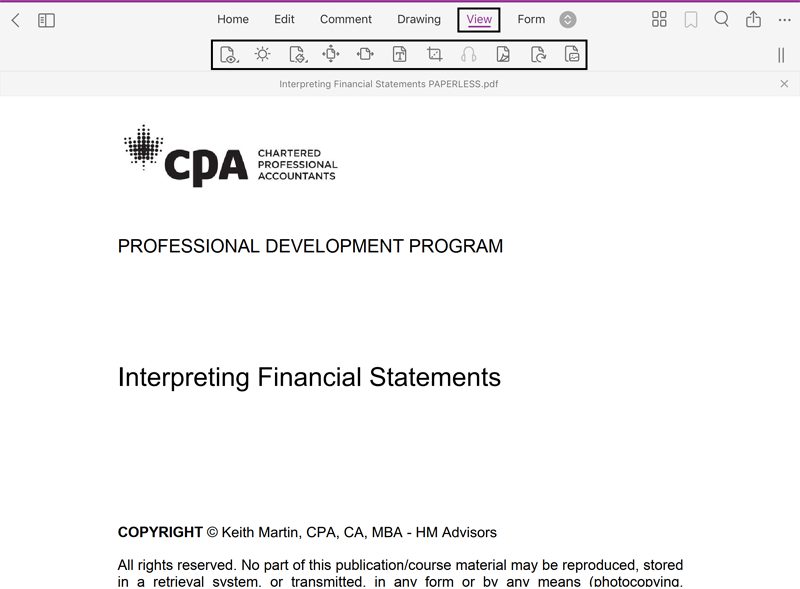
By tapping on the View tab, you can change the way you see the document.
Fillable Boxes
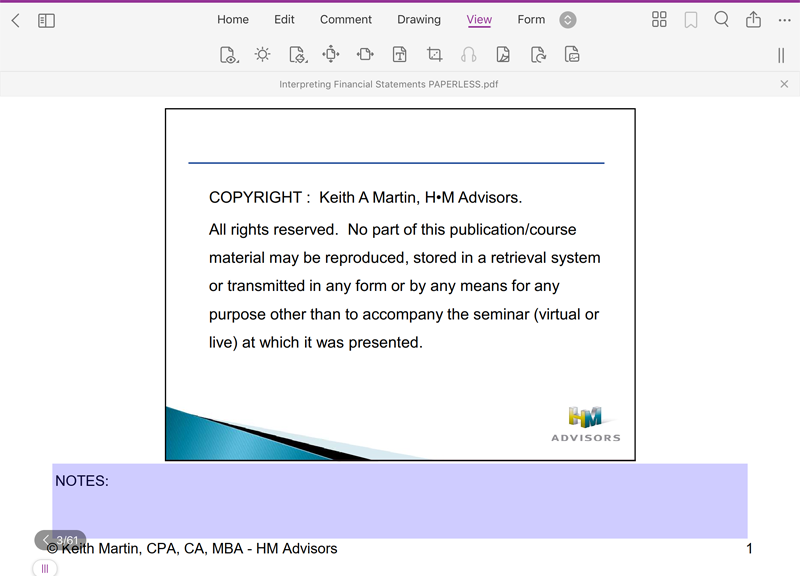
If applicable, tap on the purple box to type in the fillable field.
Save the PDF Document
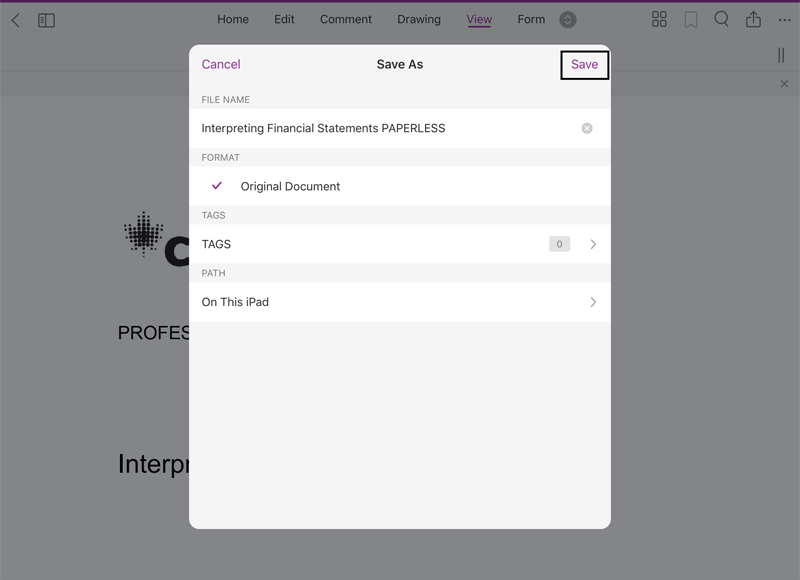
To save the PDF document, tap the 3-ellipsis in the top right hand corner. Under this menu, you’ll find the Save As option.
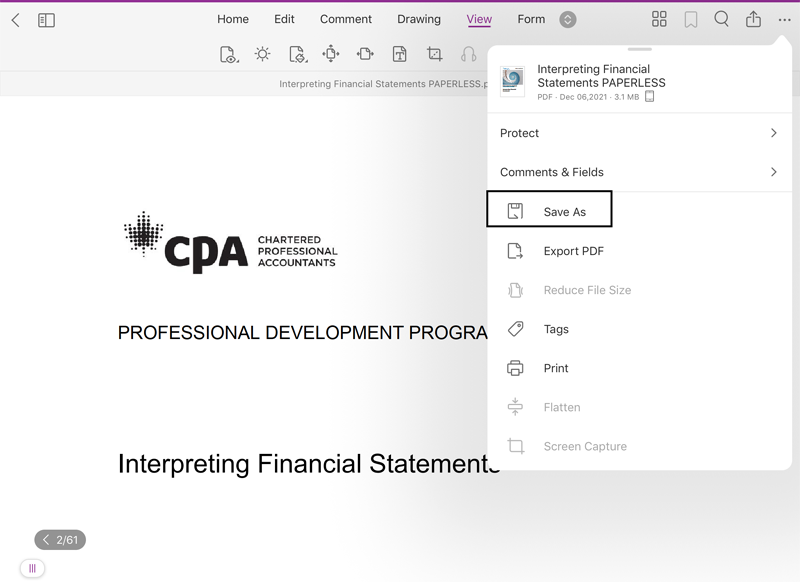
A pop-up window with the following options will display. Once you have chosen your settings, tap Save.